
How to Use Lynis to Audit Your Linux VPS Security (Step-by-Step Guide)
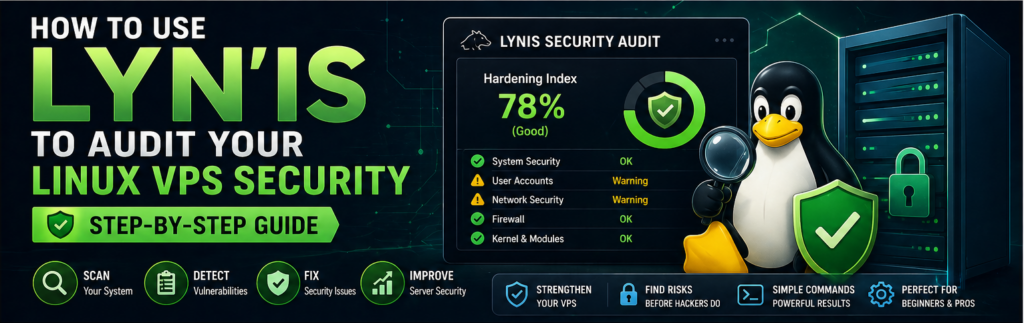
If you're running a VPS, security is not optional — it's critical.
Most servers get compromised not because of advanced hacking, but because of:
- Weak configurations
- Outdated packages
- Open ports
- Poor permissions
The problem is, you often don’t know what’s wrong until it’s too late.
That’s where automated security auditing comes in.
👉 Lynis is one of the most powerful tools to scan your Linux server and identify vulnerabilities before attackers do.
In this guide, you’ll learn how to install, run, and actually fix issues using Lynis — step by step.
What is Lynis?
Lynis is an open-source security auditing tool for Unix/Linux systems.
It helps you:
- Scan your server for vulnerabilities
- Identify misconfigurations
- Improve overall system security
Why Use Lynis for VPS Security?
1. Automated Security Checks
Scans hundreds of system components.
2. No Agent Required
Runs directly on your server.
3. Actionable Suggestions
Gives real fixes, not just warnings.
What Lynis Checks
- System files
- Installed packages
- Network configuration
- Authentication settings
- Firewall rules
Prerequisites
- Linux VPS (Ubuntu/Debian recommended)
- Root or sudo access
Step 1: Install Lynis
Option 1: Using Package Manager
sudo apt update
sudo apt install lynis -y
Option 2: Latest Version from Git
git clone https://github.com/CISOfy/lynis
cd lynis
Step 2: Run Basic Security Scan
sudo lynis audit system
Step 3: Understand the Output
Lynis provides:
- Warnings
- Suggestions
- Hardening index score
Example:
👉 Hardening index: 65
Your goal: increase this score.
Step 4: Fix Common Issues
1. Update Packages
sudo apt update && sudo apt upgrade -y
2. Enable Firewall
sudo ufw enable
3. Disable Root Login
Edit SSH config:
sudo nano /etc/ssh/sshd_config
Set:
PermitRootLogin no
Restart SSH.
4. Secure Password Policies
sudo apt install libpam-pwquality
5. Remove Unused Packages
sudo apt autoremove -y
Step 5: Re-run Audit
sudo lynis audit system
Compare score improvements.
Step 6: Automate Lynis Scans
Add cron job:
crontab -e
Example:
0 3 * * * /usr/bin/lynis audit system
Step 7: Use Lynis Reports
Reports stored in:
/var/log/lynis.log
Advanced Tips
- Use Lynis plugins
- Integrate with monitoring tools
- Schedule regular scans
Best Practices
- Run scans weekly
- Fix critical issues immediately
- Monitor logs
Common Mistakes
- Ignoring warnings
- Not updating system
- Running scan only once
Real-World Insight
Most VPS breaches happen due to:
👉 basic security misconfigurations
FAQs
Is Lynis free?
Yes.
Does it fix issues automatically?
No, but gives clear guidance.
Final Thoughts
Lynis is one of the easiest ways to improve your VPS security quickly. Run it regularly, follow recommendations, and your server will be far more secure than most.